Can I try it without uploading my photos?
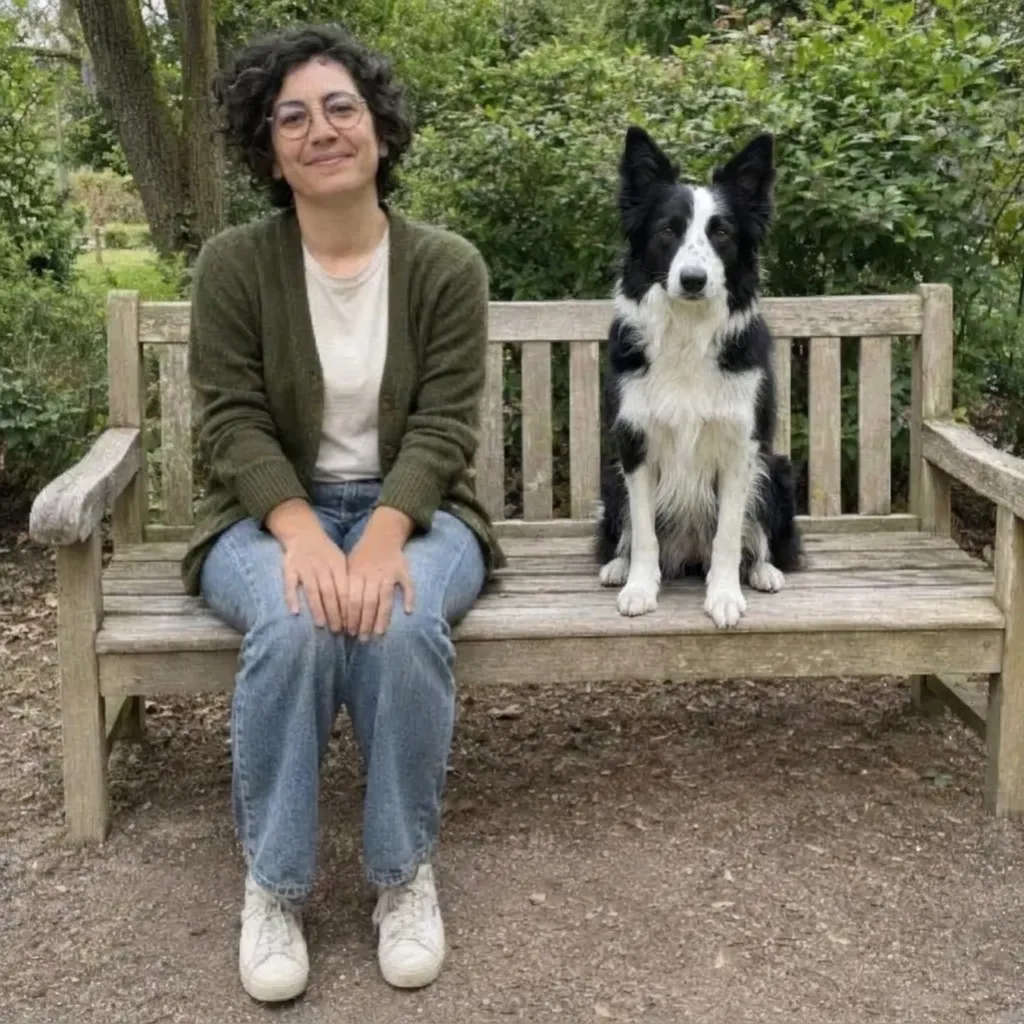
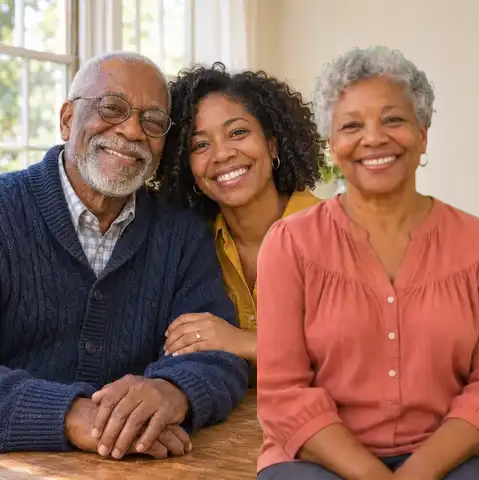
Yes. Choose Use sample photos to prepare fictional references without using a credit. You can then create a 1-credit AI photo, or switch to Manual layout to try the free local controls. The examples shown on this page clearly identify actual AI results and the separate manual family export.
How do I remove the other background?
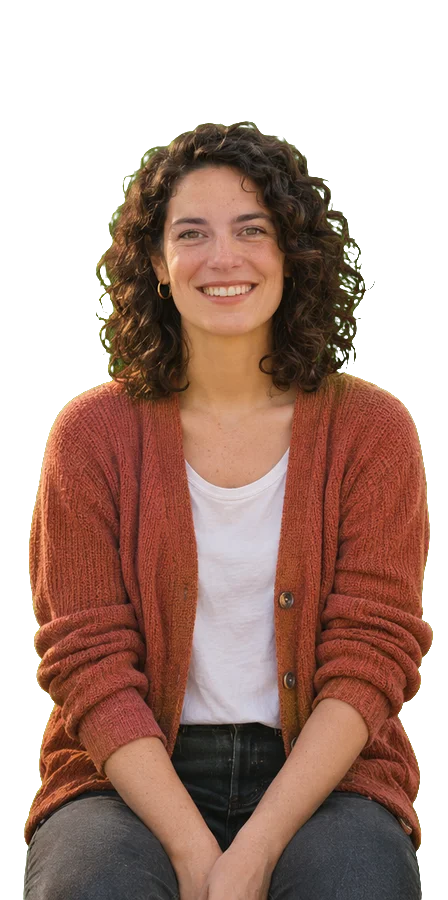
For an AI photo, upload the ordinary portrait or pet photo; no transparent cutout is required. If you choose the optional Manual layout, use a transparent PNG or WebP, or open Edit portrait background and brush away the background. Restore paints back any part removed by mistake.
Can I make a photo with my pet?
Yes. Choose Person + pet, select a photo of one person and a clear photo of one pet, then choose Pet beside me or Pet on my lap. Lap poses work best for smaller pets. AI is asked to keep your face and the pet’s breed and markings, but details may change, so inspect the result before saving.
Will everyone already in the photo keep the same face?
The placement editor overlays your portrait on the original pixels. People outside the overlay keep their original appearance. An AI blend can redraw faces, hands and other details. Compare its result with your original before sharing.
What can I download, and what costs a credit?
You can download the manual placement as a free PNG, up to 1,800 pixels on its longest edge. An AI blend requires one site credit and uses two reference photos. The local download works without an account.
Can I add someone to a photo on my phone?
Yes. Open this website in your phone browser and choose JPG, PNG or WebP images from Photos or Files. No app installation is required. Use the position sliders for small adjustments if your finger covers the portrait. If your photo is HEIC, export a JPEG copy first. Save the exported PNG to your device; the save options depend on your browser.
What happens to photos sent for an AI blend?
The two reference photos are sent for processing when you choose Create natural photo. Uploaded input copies expire within 24 hours. Save the result you want to keep. The privacy policy explains how the local editor and the AI service handle files.
Is the photo placement editor free, with no account or watermark?
Yes. Manual placement, the erase-and-restore brush and PNG downloads are free, with no watermark, sign-in or daily editing quota. Open the editor in your browser without installing software. Optional AI blending requires Google sign-in and one site credit per blend. See Pricing for current credit pack availability.
What are the file size and download resolution limits?
Choose two JPG, PNG or WebP files, up to 32 MB each. The placement PNG is limited to 1,800 pixels on its longest edge, so larger photos are resized for the working copy and export. Your original files are not overwritten. Optional AI blends use resized reference copies and return a 1K image.
Can I keep my family photos out of AI processing?
Yes. Use Manual layout and Download placement PNG. Choosing photos, positioning the portrait and using the background brush happen in your browser without sending your photos to an AI model. Create natural photo is a separate choice that sends resized reference photos and instructions to SeeAPI. Read the privacy policy before choosing that option.
How do I clear my photos or request deletion?
For local placement, close or reload the page to clear the editing session. Downloaded files stay on your device until you remove them. For an AI blend, uploaded input copies expire within 24 hours; generated result links are separate. Use the account page for account deletion, or contact support@addsomeonetophoto.com about a privacy request. The privacy policy explains the difference between input copies and generated results.
Can I undo a brush stroke or compare my own photo?
Yes. The editor keeps a limited history of recent brush, full-restore and placement edits. Use Undo and Redo, or Ctrl/Command Z while the editor is focused. Compare photos lets you drag between the original group and current edit. Edit placement lets you move the person; Original photo shows the source on its own. AI photo becomes available after a completed blend. The free PNG button always saves the manual placement.
How do I zoom in without erasing more of the portrait?
Open Edit portrait background and increase Detail zoom. Choose Move view to scroll around the enlarged portrait, then switch back to Erase or Restore before brushing. Zoom changes the view only, not the download resolution.
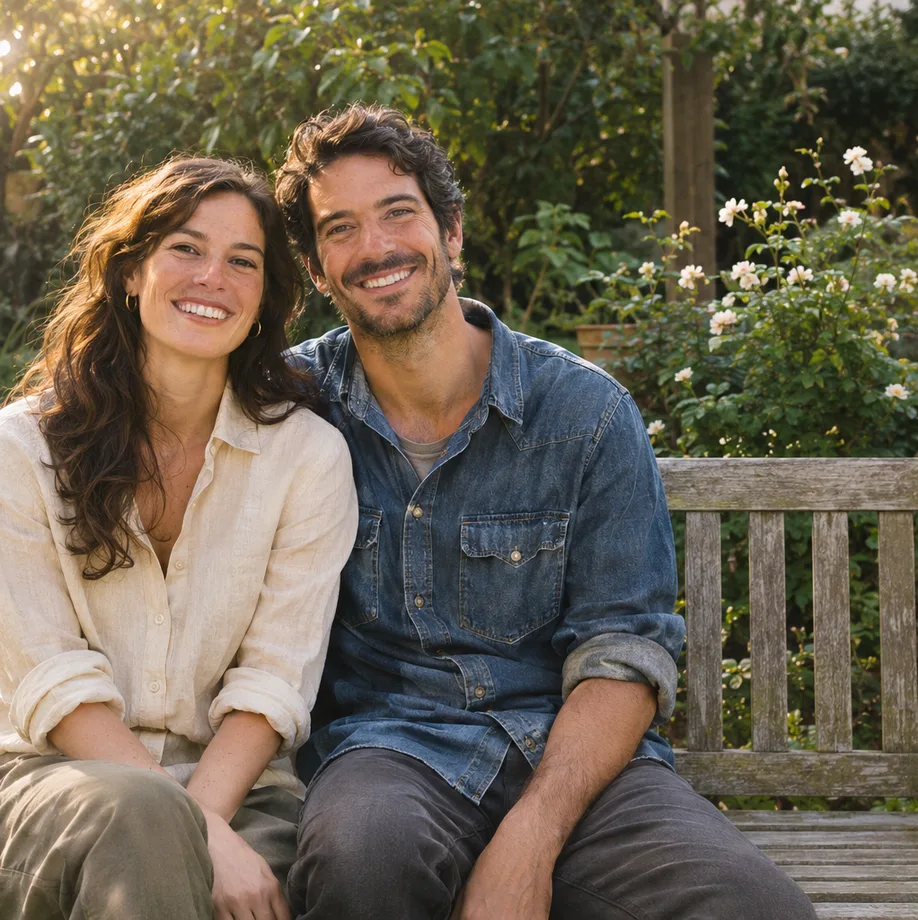


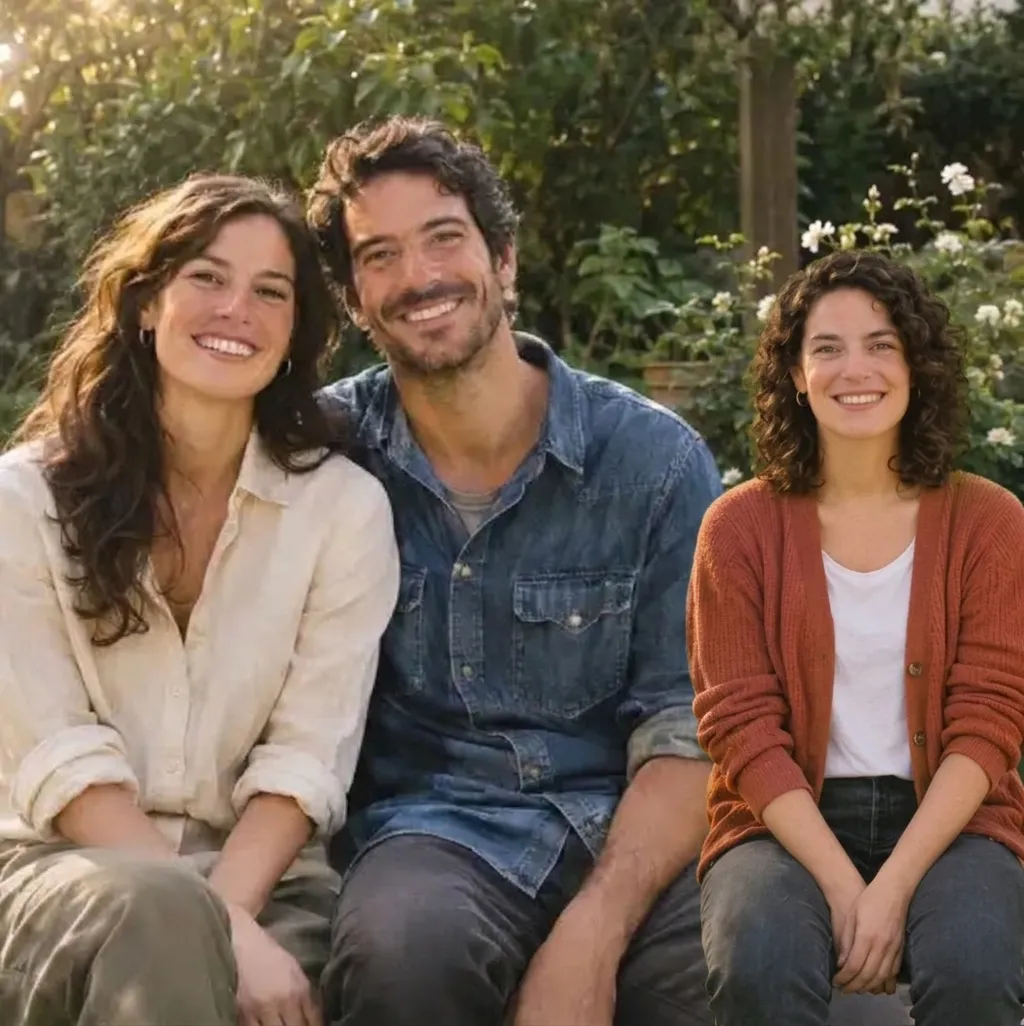 Friends & group photos